3DMellow UTOC 1 & 3
Step 1: PI Setup
Open Putty or your preferred SSH tool and connect to your printers RaspberryPi using its IP address, username and password.
Then execute the following command: sudo nano /etc/network/interfaces.d/can0
This will open the file editor for you can0 interface. Please copy and paste the content below, into this window.
allow-hotplug can0
iface can0 can static
 bitrate 500000
 up ifconfig $IFACE txqueuelen 1024
 pre-up ip link set can0 type can bitrate 500000
 pre-up ip link set can0 txqueuelen 1024
Once inserted, press Ctrl+X to save. You can now reboot the pi with ` sudo reboot `.
Test the network
Once the pi has rebooted, use Putty to log back in. You can run the ip -s link show can0 command to check your network status.
You should see a line like the one below in the results. The key thing to note is that the network is UP for now.

Troubleshooting
-
I can see my
can0network but when I connect my device to query the uuid there is no value returned.
- The USB cables can be dodgey, try another one
- Verify with
lsusb - Check you havent gotten CAN_H/CAN_L or V+/V- switched
- Ensure the “Bus Speed” is the same throughout your installation
- If in doubt, flash the latest Firmware to your UtoC.
- Ensure you have the relevant termination jumper(s) in place, typically this is the one nearest the USB-C port.
Flashing UTOC Firmware
In order to flash the UTOC a jumper cap needs to be installed as indicated in the picture (for UTOC-1 I believe it’s in the same place).
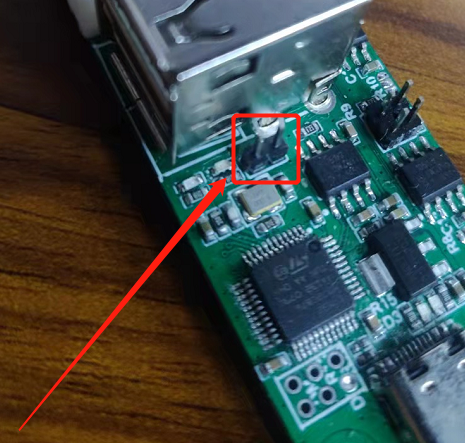
NOTE: you can also just flash candlelight_fw
If you want the firmware provided by Mellow, look in their Github repo